

Two sides of the same window
NS Remote Desktop shows this computer on the left and the computer you want to reach on the right. Each PC has its own Desk ID. That ID stays on that computer. This page never publishes anyone’s Desk ID, password, or PC name.
This Desk
Your Address is the Desk ID for this PC. Use Copy to share it. Copy LAN when the other PC is on the same network. The status shows Ready when the LAN link and the NS relay are online.
Save an alias, such as Office or Shop, so this PC is easy to recognize.
Remote Desk
Type the other computer’s Desk ID, or a LAN address, then press Connect. A password is optional. If you leave it empty, that PC shows Accept or Reject and someone there must allow you in.
Recent connections stay in the list. Press Connect again, or right-click a row for history.
What you can do
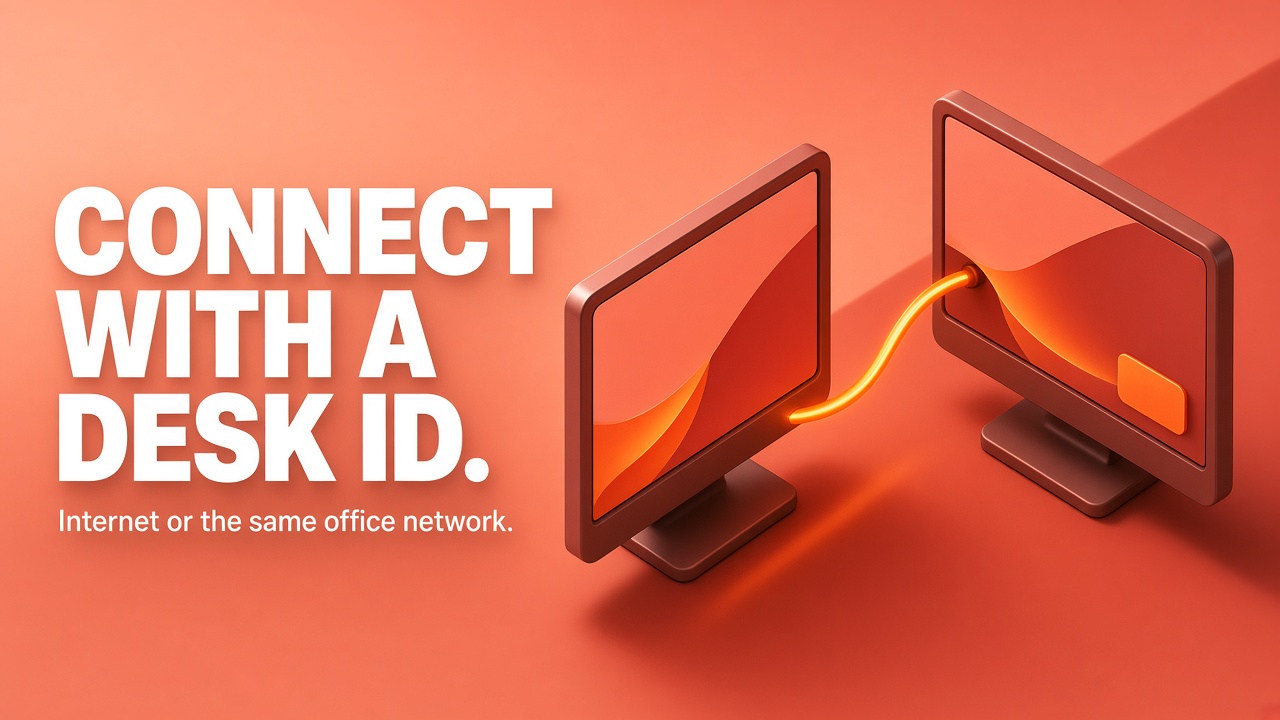
Desk ID over the internet
On a different network, both PCs stay Ready and you connect with the Desk ID through the NS relay. You do not need the other person’s public IP.
Same Wi-Fi or office LAN
On the same network you can use the Desk ID or the LAN address. Copy LAN from This Desk and paste it into Remote Address.
Accept or Reject
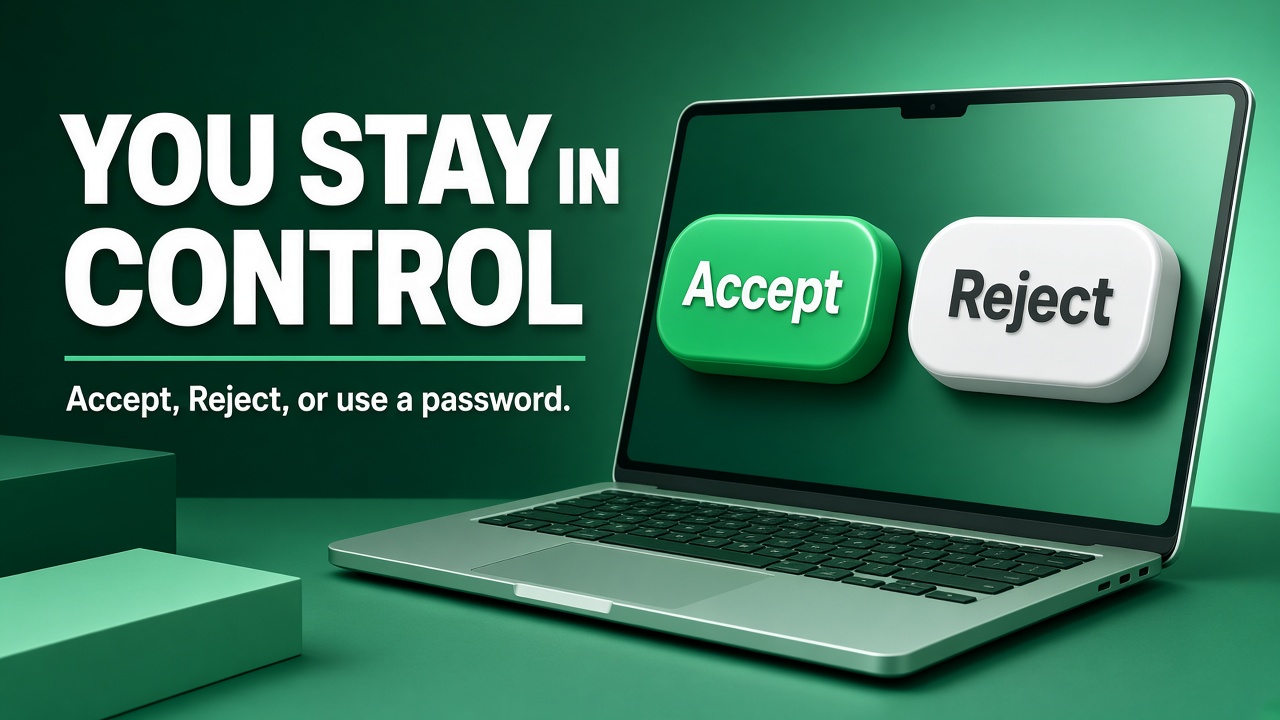
Turn on Require Accept / Reject. A connection waits until the person at that PC clicks Accept. They can also Reject it.
Password for this PC
Turn on Allow password connect if a correct password may skip Accept. Use Show, Copy, or Change. The password belongs to that PC only.
Mouse and keyboard
After the screen opens, move the pointer, click, and type on the remote computer.
Files and picture quality
Send a file to the connected PC, and use the quality slider when the line is slow or when you want a clearer picture.
How to connect
Install NS Remote Desktop on both computers and leave the window open on Ready.
Run NSREMOTEDESKTOP.exe. The program is installed as NS Remote Desktop.
On the PC you want to reach, copy Your Address. Share that ID only with the person who should connect.
Leave Accept / Reject on, or also allow a password. Share the password only when they may connect without an Accept click.
On your PC, enter their Desk ID or LAN address, add the password only if they gave you one, and press Connect.
Download NS Remote Desktop
Free Windows installer from NS Solutions.
- File: NSREMOTEDESKTOP.exe
- Windows PC with .NET Framework 4.8
- Internet connection for a remote Desktop ID

Customer comments
Tell us how NS Remote Desktop worked for you. Comments appear on this page. An administrator can hide or delete a comment from the admin panel.
NS Remote Desktop is hands down one of the most reliable and user-friendly remote access applications available. It connects seamlessly over both internet relay (Desk ID) and local office networks (LAN) without complicated setup or public IP configurations. The performance is smooth, file transfers are fast, and having granular security controls like Accept/Reject prompts and password protection gives complete peace of mind. Exceptional work by the team at NS SOLUTIONS—highly recommended for anyone needing secure, hassle-free remote support!
Need help installing? Call +92 347 4026381 or +92 300 7129899.